Folders and likes
Organize your papers into folders and keep a quick shortlist with likes.
Your library is where every paper you save lives. Folders group papers into collections, and likes give you a one-tap shortlist. This guide covers both.
Where your library lives
You'll find your saved papers in two places:
- The sidebar. The Folders section lists your folders, plus a Liked shortcut. Click View all to jump to the full library.
- The profile page. Open your profile and switch between the Folders and Liked tabs for the complete view.
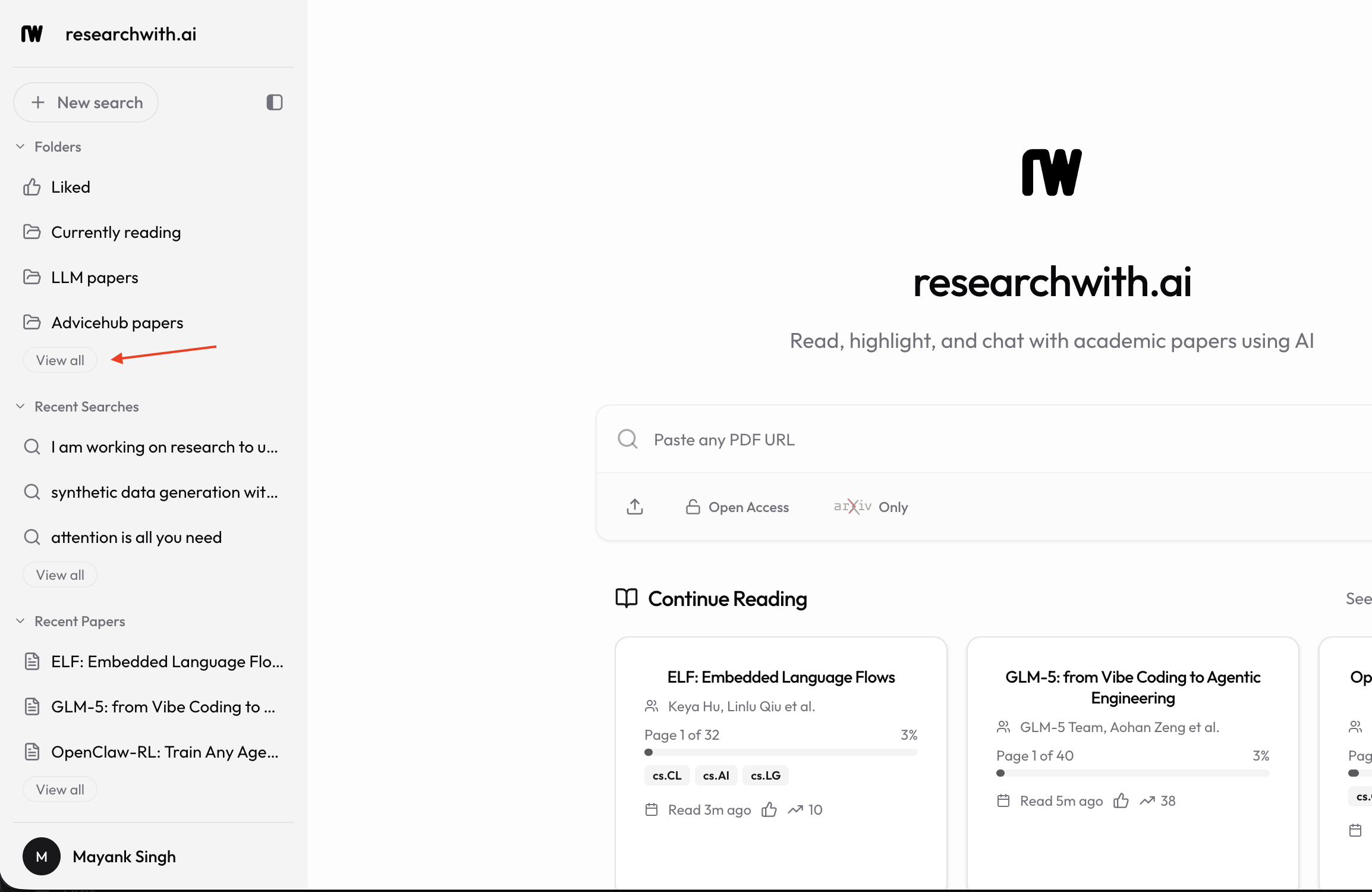
Folders
Folders are collections you create and name yourself. A paper can live in more than one folder at a time.
Creating a folder
On the Folders tab of your profile, click New Folder. Give it a name (required) and an optional description, then click Create Folder.
You can also create a folder on the fly while saving a paper: open the Add to folder control on a paper and choose Create new folder. The paper is added to the new folder right away.
Adding papers to a folder
While reading a paper, or from a search result card, open the Add to folder control (the folder icon). It lists all your folders with a checkbox next to each one. Tick a folder to add the paper; untick it to remove the paper. A small badge on the icon shows how many folders the paper is currently in.
Pinning a folder
Click the pin icon on any folder to pin it. Pinned folders move into a separate Pinned section at the top of the Folders tab, so the collections you use most stay within reach. Click the pin again to unpin.
You can also drag folders by the grip handle to reorder them within the pinned and unpinned sections.
Editing and deleting
Open the More menu (the ... icon) on a folder to Edit its name and description or Delete it. Deleting a folder removes the collection, not the papers themselves.
Likes
Liking is the quickest way to save a paper. Click the thumbs-up button on a paper in the Reader, on a paper card, or on a search result, and it's added to your Liked list immediately. Click it again to remove the like.
The Liked collection is automatic: you don't create or name it, and it always appears at the top of your library. Open it from the Liked tab on your profile or the Liked shortcut in the sidebar.
Tips
- Use folders for projects, for example a "Thesis lit review" collection.
- Pin the two or three folders you touch daily so they're always at the top.
- A like is a low-effort bookmark: use it when a paper looks interesting but you haven't decided where it belongs yet.
- Ready to share a collection? See Sharing paper folders.