Sharing paper folders
Turn any folder into a public link that anyone can open, no account required.
Once you've gathered papers into a folder, you can share it as a public link. Anyone with the link can browse the collection and read the papers, even without a researchwith.ai account. This guide covers how to turn sharing on and off, and what viewers can see.
Turning on sharing
On the Folders tab of your profile, open the More menu (the ... icon) on the folder you want to share, then click Share folder.
When sharing is enabled, a public link is generated and copied to your clipboard automatically. A small globe icon appears next to the folder name (in both the profile page and the sidebar) so you can tell at a glance which folders are public.
Folders with uploaded papers
If the folder contains papers you uploaded yourself, you'll see a confirmation dialog before sharing. Uploaded PDFs are excluded from the public view for privacy: viewers will see the rest of the folder, but not your uploads. Confirm to continue, or cancel if you'd rather not share that folder.
The shared link
The link looks like:
https://researchwith.ai/shared/folders/<share-token>
The token is a long, random, unguessable value, so the folder is typically only reachable by someone you've actually given the link to. The collection is not listed on our platform.
What viewers see
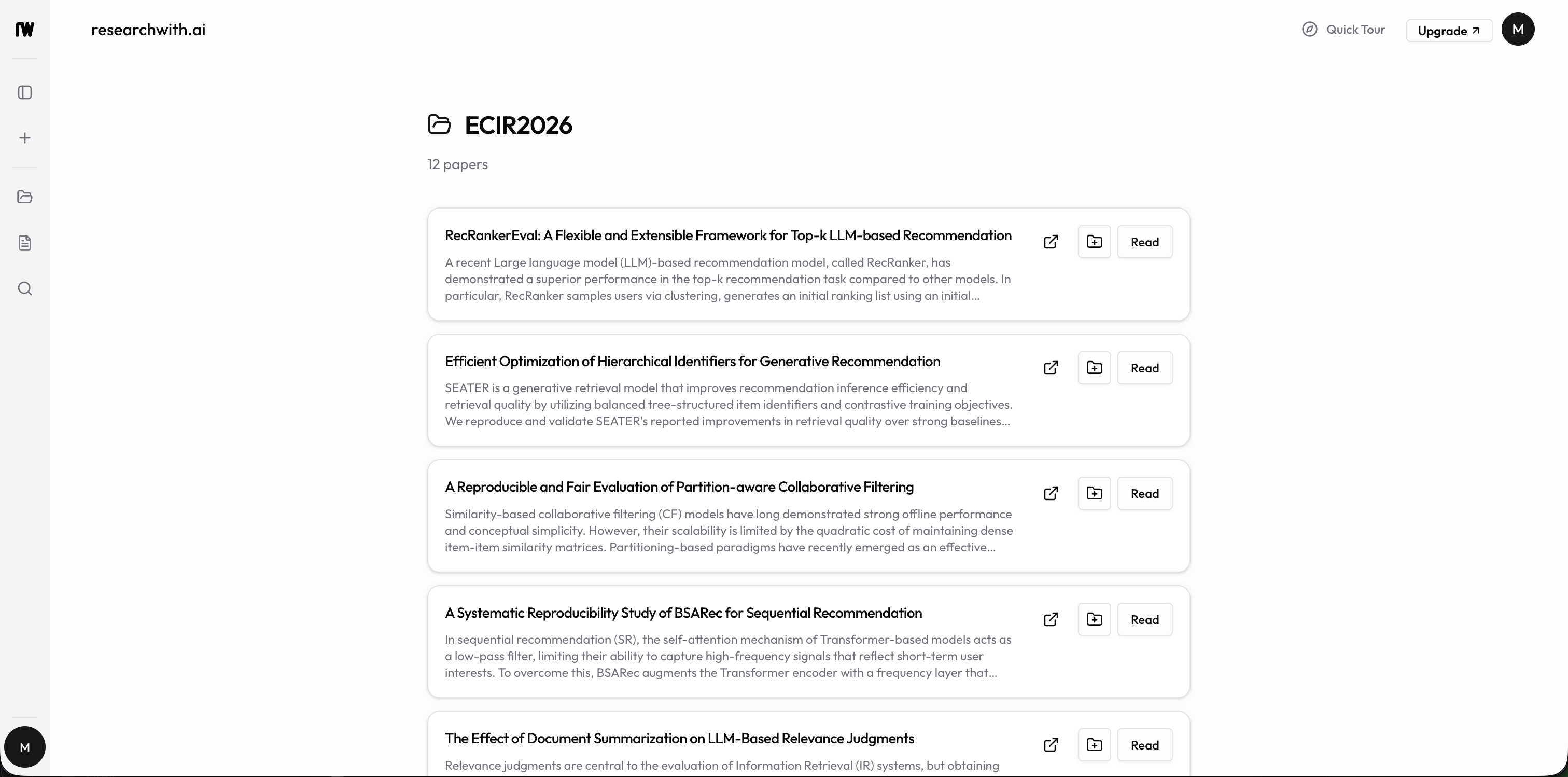
Opening a shared link shows a clean, read-only page with:
- The folder name and description
- A count of papers in the collection
- Each paper with its title and abstract, plus links to read it in the Reader or open it on arXiv
Viewers do not need an account to browse or read. Signed-in viewers also get an Add to folder control on each paper, so they can save papers from your collection into their own folders. Anonymous viewers see a prompt to sign in if they want to do the same.
Uploaded papers are never shown to viewers, as noted above.
Stopping sharing
To make a folder private again, open the More menu and click Stop sharing. You'll be asked to confirm.
Once you stop sharing, the existing link stops working immediately: anyone who had it will no longer be able to open the folder. If you share the same folder again later, a new link is generated, so the old one stays dead.
You can copy the current link again at any time while a folder is public: open the More menu and click Copy link.
Tips
- Add a short description to a folder before sharing it, so viewers know what the collection is about.
- Stopping and re-sharing rotates the link. Use this if a link was shared too widely and you want to cut off old access.
- Keep private uploads in a separate folder if you plan to share often; that way you never have to think about what gets stripped from the public view.